
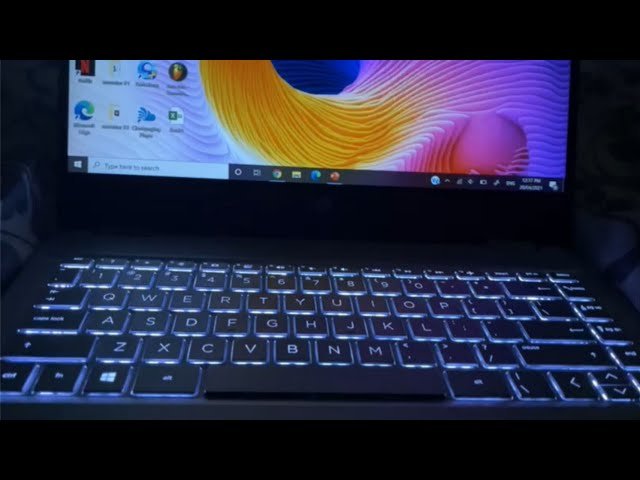
Working through the twilight hours or stationed in a dimly lit room, the soft glow beneath your fingertips isn’t just an aesthetic luxury; it’s a critical tool for productivity and accuracy. For owners of HP’s versatile convertible laptop, understanding the nuances of the HP Pavilion x360 Backlit Keyboard transforms the user experience from frustrating fumbling in the dark to seamless, efficient typing. This comprehensive guide explores every facet of this essential feature, ensuring you can illuminate your workflow regardless of the lighting conditions.
The HP Pavilion x360 series is celebrated for its flexibility, flipping from a standard laptop to a tent, stand, or tablet. However, the keyboard is the anchor of productivity in its traditional mode. When the sun sets or the environment darkens, the backlit keyboard becomes the bridge between thought and digital action. However, not every configuration carries this feature, and even when present, it can occasionally present challenges. This article will walk you through identifying if you have the feature, activating it, customizing its behavior, and troubleshooting common issues—all without needing to be a technology expert.
In this article
- Understanding the Technology Behind Your Laptop’s Glow
- Locating the Command Center: The Function Key Row
- A Step-by-Step Guide to Activation and Brightness Control
- Customizing Your Glow: Settings and Timeouts
- Resolving Common Issues and Driver Problems
- The HP Pavilion x360 Backlit Keyboard as a Productivity Partner
- Final Thoughts on Your Illuminated Journey
Understanding the Technology Behind Your Laptop’s Glow
The HP Pavilion x360 lineup is diverse, ranging from compact 11-inch models to robust 15-inch workhorses. The hardware specifications vary significantly across different product numbers, and the keyboard is one component where this variance is most visible.
 Also readWhat Should You Consider Before Starting a Home Remodeling Project?
Physical Variations Across Models
Official product specifications confirm that many modern iterations, particularly in the 14-inch category, come equipped with a “Full-size island-style backlit keyboard” or a “Full-size, backlit, ash silver keyboard”. These descriptions indicate that the keys are chiclet-style with a flat, slightly separated design—ideal for preventing typos and easy to clean.
However, this is not a universal standard. Older or more budget-oriented models, specifically some of the 11.6-inch configurations, often ship without backlighting capabilities. Official community answers from HP representatives regarding these smaller models explicitly state, “No, the keyboard is not backlit”. Before diving into settings and shortcuts, it’s wise to physically inspect your unit. Look at the function row (F-keys) for an icon resembling a keyboard with light rays or a glowing square. The absence of this icon is often the simplest confirmation that the hardware is not installed.
The Integrated Nature of the Keyboard
In the HP Pavilion x360 series, the keyboard is not a simple plug-and-play accessory like a mouse; it’s deeply integrated into the chassis. Replacement guides reveal that accessing the keyboard requires removing the entire top panel, disconnecting ZIF (Zero Insertion Force) connectors for the keyboard and touchpad, and navigating multiple screws. This design contributes to the laptop’s sleek profile and structural rigidity but means that retrofitting a non-backlit model with a backlit keyboard is extremely difficult and generally not recommended. The power delivery and signal connectors are often different, turning a potential upgrade into a logistical nightmare.
Locating the Command Center: The Function Key Row
Assuming your model supports the HP Pavilion x360 Backlit Keyboard, the control surface is elegantly simple. The primary command center for illumination is your top row of keys.
The Dedicated Lighting Key
Unlike software-heavy gaming keyboards, the Pavilion x360 relies on hardware function keys for instant control. The specific button is typically F5 or F4, though F5 is the most consistently reported position across various support communities. The key usually features a distinctive icon: a small rectangle or square representing the keyboard, with angled lines extending outward to symbolize light rays.
Tapping this key cycles through the brightness stages. Depending on the specific firmware version installed on your device, you typically have three states: high brightness, low brightness, and off. This direct physical control allows you to instantly react to changing environmental light without digging through menus.
Understanding the ‘Fn’ Lock Dynamics
A common source of confusion arises from the dual behavior of the F-keys. If you press F5 and find the screen brightness changing or nothing happening, the “Action Keys Mode” in your system’s BIOS (Basic Input/Output System) might be the culprit.
By default, many HP systems prioritize the special actions (like volume, brightness, and keyboard backlight) over the traditional F-function. If your system requires you to hold the Fn key while pressing F5 to adjust the keyboard light, it indicates that the Action Keys Mode is disabled, or the function lock is toggled. You can invert this behavior in the BIOS settings, a process we will detail later. This design allows users who frequently use software shortcuts that rely on traditional F-keys to avoid constantly holding the Fn modifier.
A Step-by-Step Guide to Activation and Brightness Control
Let’s say you just unboxed your device or sat down in a dark room. The screen is on, but the keyboard remains dark. Here is the sequence to bring it to life:
-
Direct Key Press: Locate the backlight key (usually F5). Press it once. If the keyboard illuminates to full brightness, you’re set.
-
Function Modifier: If step one fails, hold the
Fnkey (located near the bottom-left corner of the keyboard, next to theCtrlkey) and press the backlight key. -
Cycle the Modes: With the backlight on, press the backlight key (with or without
Fn, depending on the configuration that worked in step two) again. The brightness should dim. Press it a third time to turn the light off. -
Check the BIOS/UEFI: If absolutely nothing happens, the feature might be disabled at a firmware level. Restart the laptop and immediately begin tapping the
Esckey repeatedly until a menu appears. Then, pressF10to enter the BIOS/UEFI settings. Navigate to the Advanced or Configuration tab. Look for an option labeled Built-in Device Options. Inside, find Backlit keyboard or Keyboard Backlight. Ensure it is set to Enabled. Also, check a setting called Action Keys Mode. If it’s disabled, theFnkey behavior is active; if enabled, the special functions work directly.
This multi-layered approach—physical key, modifier, and firmware setting—ensures that almost all instances of a non-responsive backlight can be resolved without technical support, provided the hardware is functional.
Customizing Your Glow: Settings and Timeouts
While the HP Pavilion x360 does not support RGB color customization or per-key lighting zones—those are features reserved for gaming lines like Omen or premium Spectre models—you do have some control over power management.
The Idle Timeout Function
To conserve battery life, the keyboard backlight doesn’t usually stay on indefinitely when you aren’t typing. It operates on an idle timer. After a few seconds of inactivity, the lights dim or turn off, only to spring back to life the moment you touch the touchpad or press any key. This behavior is completely normal and designed to extend your screen-on time.
Adjusting the Timeout in BIOS
Some, but not all, firmware versions allow you to adjust this timeout duration. In the same BIOS menu (accessed by pressing F10 during startup), you might find an option labeled Backlit keyboard timeout or Keyboard illumination timeout. The available values are often time-based, such as 5 seconds, 15 seconds, 30 seconds, or 1 minute. If you find the light turning off too quickly while you pause to read or think, extending this timeout to 30 seconds or a minute can create a much smoother experience. Conversely, if you rarely use the keyboard in the dark and want to maximize battery, keeping it short is beneficial.
Resolving Common Issues and Driver Problems
Even with correct settings, you may sometimes encounter glitches. When the backlight stops responding, or the keyboard itself begins to act erratically, a systematic approach to troubleshooting is essential. The keyboard is a bridge between the physical world and the digital, and issues can arise on either side of that bridge.
When Cleaning Causes Chaos
A common scenario involves physical cleaning. Support forums detail cases where users gently cleaned keycaps with cotton swabs, only to find specific keys—including backlight controls—stop functioning. This usually indicates a mechanical issue with the key’s scissor-switch mechanism or a dislodged membrane connection under that specific spot. If a cleaning session precedes the failure, inspect the keycap to ensure it is properly seated. These keys use a delicate plastic hinge; if one side is detached, the pressure doesn’t transmit correctly to the contact below. Gently pressing down until you hear a click can sometimes reseat a loose cap.
Software and Driver Corruption
The most perplexing issues are those where the keyboard types incorrect characters or specific function keys fail. Users have reported scenarios where the keyboard intermittently types accented characters (like “ś” instead of “s”) after hours of use. While this might seem like a hardware defect, it’s frequently a software stack corruption.
The Safe Mode Test: Restarting Windows in Safe Mode is a powerful diagnostic. Safe Mode loads only the absolute minimum drivers. If the keyboard—and its backlight—works flawlessly in Safe Mode for an extended period, the problem is almost certainly a third-party software conflict or a corrupted driver, not a physical defect.
The Driver Refresh: The driver acts as the translator between the physical keyboard and Windows. To reset this translator, open the Device Manager (right-click the Start button). Expand the Keyboards category. You’ll likely see “HID Keyboard Device” or a similar standard driver. Right-click it and select Uninstall device. Do not panic; this won’t permanently break your keyboard. Restart your computer. Upon reboot, Windows will automatically detect the hardware and reinstall a fresh copy of the driver. This process clears out any configuration errors that may have accumulated.
System Restore and HP Support: If a driver reinstall fails, consider if the issue started after installing a specific new application or update. Using Windows System Restore to revert to a point before the problem began can reverse the corruption. As a final step, downloading the specific keyboard and chipset drivers directly from the HP Support website for your exact model number ensures you have the most stable, tested software.
The HP Pavilion x360 Backlit Keyboard as a Productivity Partner
Once illuminated correctly, the HP Pavilion x360 Backlit Keyboard becomes more than just a tool for typing in dimly lit rooms. It acts as a visual confirmation that the system is awake and ready, reduces eye strain by preventing the need to hunch forward and search for keys, and significantly increases typing speed and accuracy during nighttime work sessions or in dimly lit environments like conference halls during presentations.
Preserving the Longevity of the Mechanism
Laptop keyboards endure constant physical stress. The oil from fingertips can degrade the keycap lettering and finish over time, and debris can creep under the keys. To maintain the even glow of the backlight, keep the keyboard clean. A can of compressed air is the safest tool for dislodging crumbs and dust from the crevices around the chiclet keys. Avoid eating over the keyboard, and periodically wipe the surface with a slightly damp, lint-free microfiber cloth, ensuring no moisture drips into the gaps.
When you connect an external keyboard, the built-in keyboard generally remains active. However, Windows offers an accessibility setting to disable the laptop keyboard when an external one is detected, which can be found under Device Input settings. This is useful if you place an external keyboard on top of the laptop deck and worry about accidental palm presses activating unwanted commands.
Final Thoughts on Your Illuminated Journey
The journey through the settings and troubleshooting of your convertible laptop’s lighting reveals a thoughtful piece of engineering designed for real-world flexibility. The combination of immediate hardware toggles and deeper software customization respects both the casual user who just wants to tap a key and the power user who needs specific timeout behavior.
From identifying the physical icon on the F5 key to navigating the Advanced settings in the BIOS to adjust the idle timer, you now hold the complete map to controlling your laptop’s lighting. The HP Pavilion x360 Backlit Keyboard is a feature that, once properly tuned, fades into the background of your workflow—literally and figuratively—always there to guide your fingers when the environment turns dark. Whether you are a student pulling an all-nighter, a professional wrapping up a report after hours, or someone simply browsing the web from the comfort of a dimmed living room, the soft, adjustable glow ensures your productivity never hits an unlit dead end.
